The nominated Exchange server for offline address book 'Default Offline Address List' has been deleted.

I was helping out one of my friend in installation of Exchange Server 2010 SP2 in existing exchange 2003 environment.

Environment:
2 Domain Controller
Exchange Server 2003 SP2
Exchange Server 2010
Exchange Server 2010 on domain controller

After installing all the prerequisite for windows and completing the active directory switches which are
Setup.com /pl, Setup.com /ps, Setup.com /preparead and Setup.com /preparedomain we started the exchange installation and readiness check failed with error.

Client Access Role Prerequisites
Failed
Error:
The nominated Exchange server for offline address book 'Default Offline Address List' has been deleted. Nominate a valid server and restart setup.
Click here for help... http://go.microsoft.com/fwlink/?linkid=30939&l=en&v=ExBPA.14&id=d2b0382e-6f51-46ca-bf12-2dafaa9af2c9

After digging into it, I found that exchange server 2003 OAB generation server is pointing to the server which do not exist in the environment.
OAB
Open Exchange System Manager…>Recipients…>Offline Address List…>Right click properties of Default Offline Address List…Click brows on Offline address list server and select the running exchange 2003 server in the environment.
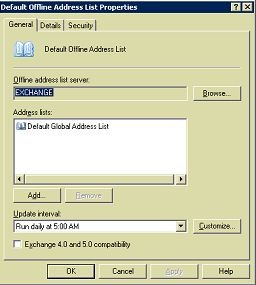
Correct OAB
After changing the server, started the installation and it completed successfully.
I read on the internet regarding the same issue and found that people suggesting that you should delete Default Offline Address Book (List) from adsiedit.msc which is not correct.

If you delete Default Offline Address Book (List) and run the setup again than you will get error saying, Default Offline Address Book cannot be found.


Cheers,

Exchange Server 2010 SP2 installation fails with error code ’2147504141′

I was doing installation of Exchange server 2010 SP2 in the LAB in Hyper-V. I have done tons of installation in the past and on all the occasions installation went fine without any issue, except for this time.

Exchange server configuration:
Single domain
One domain controller with GC and DNS
Exchange server is running on domain controller (I know it's recommended)
Windows Server 2008 R2 with SP1

After installing all the prerequisite for windows server 2008 R2, I started installation. Readiness check passed without any error, well there were warnings for Exchange running on DC and Microsoft Office 2010 filter pack, which can be ignored.

Installation started and it failed on Hub Transport Role with error message.

“An error occurred with error code ’2147504141′ and message ‘The property cannot be found in the cache.”

 
Did some research, found that the issue is with Time Sync on HyperV. Disabled the Time Sync on the machine by doing the following steps
1.Open up the settings for the VM
2.Under Management, highlight the Integration Services option and you will get a list of the Integration Services installed and enabled
3.Uncheck the Time Synchronization service and press Apply.

Note:All time synchronization that is done by the Hyper-V time synchronization integration service is time zone aware.  If you disable the Hyper-V time synchronization integration service you will disable all the time synchronization aspects of Hyper-V that are time zone aware – and only leave the initial RTC synchronization active – which is not time zone aware.

Started the installation again and it failed with error.

Delete the Action and Install registry key from the location HKLM\Software\Microsoft\Exchange\V14\HubTransportRole.

Rebooted the server and started the installation but it failed again with the same error.
Now here is the best part of the resolution, to fix the issue you will have to uninstall exchange entirely from the server (control panel) if you fail to uninstall the server from control panel than you will have to remove the server manually. Check my blog how to remove exchange server 2010 manually from the computer.

This is a BUG and I was hopping that it will get fixed in RU2 at least but unfortunately it didn't. Hoping that it will be fixed in RU3.

Cheers,

How to run BETest on Exchange Server 2007

There are many articles available on running BETest, I thought of writing my own article with experience I had running BETest.

The version of BETest that is used here is located in the VSS SDK, which can be
Downloaded from the following location
http://www.microsoft.com/downloads/details.aspx?FamilyID=0B4F56E4-0CCC-4626-826A-ED2C4C95C871&displaylang=en
The current version of the VSS SDK is 7.2

After installing the VSS SDK, you will then find BETest in the following directory.
%Program Files%\Microsoft\VSSSDK72\TestApps\betest\obj\x64 (or i386). There are separate versions of Betest for x64, and i386.
Make sure to run the version that corresponds to the OS build that you have (x64 or x86).

The next step to using Betest is to build your input file. Most documentation refers to it as components.txt, but it can be called whatever you want. The contents are what is important. The information required in the components.txt file is as follows:

"<writer-id>": "<component-logical-path>";

The first step in building your components.txt file is to determine the writer ID. Fortunately, the Exchange Writer ID does not change.
That ID will be as follows.

"{76fe1ac4-15f7-4bcd-987e-8e1acb462fb7}":

This information can be confirmed by running the following command from a command prompt.

vssadmin list writers
Writer name: 'Microsoft Exchange Writer'
Writer Id: {76fe1ac4-15f7-4bcd-987e-8e1acb462fb7}
Writer Instance Id: {9ba5818d-b602-4486-b014-9c667a9a8916}
State: [1] Stable
Last error: No error

You now have the Exchange Writer ID, which makes up the first half of the input file. The second part of the file is the logical path. This is the path to the GUID of the Storage Group that you want to back up. This requires you to find out what the GUID of the storage groups are. Fortunately, with Exchange 2007, this is easily done using PowerShell. Simply run the below command.

Get-StorageGroup -server <servername> | fl name, guid

Name: First Storage Group
Guid: aaecdeb8-7891-4fca-ade8-a1a3c0bf97f8

Name: Second Storage Group
Guid: 32fca98d-e58c-42dd-b2d2-a0982a3ff480

Name: Third Storage Group
Guid: e28a4919-79fa-4741-b76d-b780d5578460

Standalone
"{76fe1ac4-15f7-4bcd-987e-8e1acb462fb7}": "Microsoft Exchange Server\Microsoft Information Store\<SERVERNAME>\aaecdeb8-7891-4fca-ade8-a1a3c0bf97f8";

CCR system input file
"{76fe1ac4-15f7-4bcd-987e-8e1acb462fb7}": "Microsoft Exchange Server\Microsoft Information Store\<SERVERNAME>\<GUID of SG>"

You are now ready to run the BEtest command. Note that the switches included with the command are case sensitive

BETEST.exe /B /E /T 1 /S output.xml /C components.txt /D c:\backup

The backup should now start, and you will see output on the screen similar to the following.
Asked to do backup only
Asked to exclude BETEST test writer
Backup-type to use is 1
File name to save/load Backup Document is "output.xml"
File name for Components Selection is "sg1active.txt"
Directory to save/restore backup files is "c:\backup\"

Conclusion:
BETest is a utility to test Exchange Writer. If BETest is successful, and leaves the Exchange Writer in a STABLE state (observed from the output), then the you needs to be referred to your backup vendor for further troubleshooting of their application. Prior to testing with BETest, ensure that you have the most recent Windows VSS hotfixes/updates applied.

Note: This article applies to Exchange Server 2007 running on Windows Server 2003 only. Refer to my previous blog for running BETest on Windows Server 2008.

Cheers,

554 Policy violation. Email Session ID: {4F4807CA-17-2FEA8C0-1FFFF}

I was working with my friend on exchange server 2010 mail flow issue. He is not able to send email outside on the internet, but he could receive email from outside. Everything was working fine but all of a sudden it stopped working.

Exchange server is running in mixed environment with exchange server 2007 and 2010


I tried to send email using telnet but it failed. Checked the event viewer for any information but surprisingly there were not event generated related to the issue. It is happening to all the users on both exchange 2007 and exchange 2010 server.

Checked the Queue Viewer on 2010 server and got the below information which was very helpful in terms of troubleshooting.
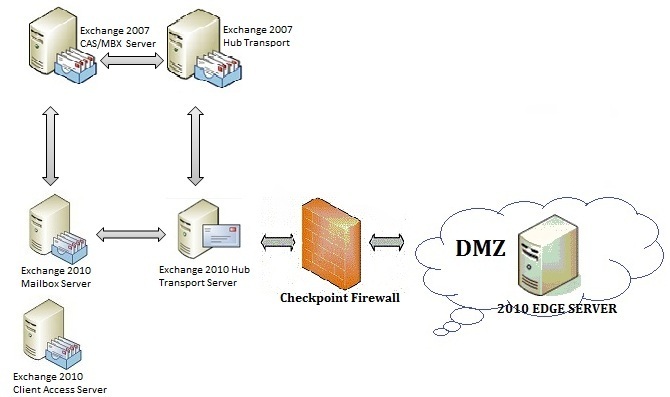
Queue_HUBTransport-LAN - CopyWe had a Check Point firewall between Exchange 2010 Hub Transport and EDGE server.
After looking into Check Point firewall, I found that SMTP inspection is ON on it.
But it worked fine in the past without any issue. All though I didn’t checked the SMTP inspection on the Check Point server in past, hence I do not know what was the status of it, was it ON or OFF.
Turned OFF the SMTP Inspection on Check Point firewall and checked the mail flow and it started working fine.
The only thing I can think of for SMTP Inspection got turned ON would be any update for Check Point or my Security guy must have done it without knowing the impact of it on exchange server Winking smile
Reference article to turn Off SMTP Inspection:
http://technet.microsoft.com/en-us/library/dd277550(v=exchg.80).aspx
Cheers,

Manually uninstalling Exchange server 2010 from a computer

You must have been ran into the situation where you are uninstalling Exchange server 2010 from the server using control panel or Exchange Management Shell (EMS) but you are getting errors and even after trying hours and hours to fix it but you are not able to uninstall the server. You can remove the server manually.

Consider before removing the Exchange 2010 manually:
A: Is the server the OAB Generation Server?
B: Is it the host for any connectors or subscriptions to Edge servers?
C: Are there any public folders that need to be re-homed to other servers?
D: System state backup did not completed successfully today?
If any of these are YES than you should take care of it before you start uninstalling the server.

By following the below steps you can remove the exchange server manually from the computer/server.
1: Take the flat file copy of database.EDB file in case you want to mount the database on some other server.
2: Stop and disable all the below exchange services. Click on Start...>Click on Run...>Type Services.msc

Exchange Services
Note: In your case you might see lots of other services depending on the number of exchange server roles you have installed.
3: Remove all exchange registry from the server from the below location
Note: Take registry backup before deleting it. It's always a best practice.
HKEY_LOCAL_MACHINE\System\CurrentControlSet\Services\MSExchange*

Exchange Server Registry keys
Note: In your case you might see more or less registry keys depends on number of Exchange Server Roles you have installed on the server.
HKEY_LOCAL_MACHINE\Software\Microsoft\ExchangeServer

4: Open windows explorer and go to the location C:\Program Files\Microsoft\ExchangeServer\V14\bin, delete the bin folder. Bin folder contains all the binary files of exchange server.
If you are getting Access error message or File is locked/used by other program, than you rename ExchangeServerfolder to ExchangeServer_OLD. After renaming the folder delete the ExchangeServer_OLD folder.
5: Go to Adsiedit.msc...>Configuration...>Services...>Microsoft Exchange...> Administrative Groups...>ExchangeAdministrativeGroup...>Servers...> here you will find all the exchange 2010 server you have in your environment. Delete the server you are uninstalling.

Note: Follow the above step as mentioned, if you delete something else other than mentioned in the article you will/might break the exchange environment.
6: Restart the exchange server and go to Control Panel...>Programs and Features...>Make sure you don't have Exchange Server Object listed here, but sometime you will see the Exchange Server 2010 listed but the size of the server will be in MB's. I call is shadow of Exchange Server Winking smile
Remove the server from Programs and Features, it will take less than minute to remove the exchange object from Programs and Features.You have successfully uninstalled/removed exchange server 2010 manually Smile
Cheers,

EXCHANGE RANGER